
How To Remove Malware From A Hacked WordPress Site: A Comprehensive Guide
TL;DR: If your WordPress site has been hacked, acting fast is key. Common signs of malware include strange pop-ups, unfamiliar admin users, redirects, and Google warnings. Hacks often stem from outdated plugins, weak passwords, or nulled software. To safely remove malware, use Wordfence — the most trusted WordPress security plugin protecting over 5 million sites.
Table of Contents
Are you getting unusual pop-ups, sudden traffic spikes, or odd redirects to offensive sites? Then your WordPress site might have a malware infection.
Left unchecked, these seemingly minor annoyances can escalate rapidly into severe problems, including stolen data, compromised customer information, and long-lasting damage to your brand reputation.
However, with the right approach, you can fix this issue and regain control of your site — If you need immediate and personalized help, check out our Wordfence Care or Wordfence Response plans for professional assistance.
In this blog, we’ll walk you through how to detect signs of malware infection, show you how to clean a hacked WordPress site, pinpoint vulnerabilities that malicious hackers exploit, and share proactive strategies to fortify your site’s defenses.
Need Immediate Help With Malware Removal?
If you’re experiencing issues with malware or a hacked website and need immediate support, Wordfence offers expert site cleanings in our Care and Response plans. Both plans come with a thorough malware investigation, malware cleanup, and post-incident search engine security cleanup.
With Wordfence Care, you’ll receive expert support during business hours. Wordfence Response offers a 1-hour response time and incident support 24/7/365. Both of these options also include a site audit from our professional team of WordPress security experts.
How To Know Whether Your WordPress Website Is Hacked
Malicious actors often try to cover their tracks when they hack your WordPress site, making it challenging to detect a compromise at first glance.
The best way to detect whether your website has been hacked is to scan your website with Wordfence. Beyond that, here are some common indicators to watch out for besides confusion or complaints from users:
- Defaced website: Your website’s appearance or text has been changed without your knowledge.
- Malicious pop-ups or ads: Visitors report seeing intrusive pop-ups (especially for things like gambling, adult websites, or pharmaceuticals) or ads for dubious products when on your site. This could mean malicious actors have injected spam scripts into your pages.
- Unknown admin users: Check your WordPress users list for accounts you don’t recognize. If an admin account you didn’t create appears, it’s a strong sign someone gained unauthorized access to your WordPress dashboard.
- Sudden traffic spikes or drops: A compromised site might be exploited to send spam or redirect visitors, causing unusual traffic patterns. For instance, a hack known as “SEO spam” can generate hundreds of spam pages, leading to a spike in bot traffic. On the other hand, you might see a sharp drop in legitimate traffic if Google blocklists your site for malware.
- Site redirects to unknown URLs: If visiting your site suddenly sends you to a different, often malicious, website, that’s a clear indicator of a hack. Attackers insert redirection code in your site’s files or database to funnel your traffic to phishing pages or scam sites. Often, these redirects target only first-time or non-logged-in visitors, so you may not notice it immediately as the site owner.
- Browser or search engine warnings: Google Safe Browsing will warn users if a site is unsafe. You and your visitors might see a big red warning page in Chrome or a notice in search results saying “This site may be hacked.” If Google flags your site with a message like that, it means their systems detected malware or spam content on your pages.
- Hosting or security plugin alerts: Sometimes, your web hosting provider will email you about malware detected on your account, or a security plugin (if you have one installed) will alert you to suspicious changes.
How To Remove Malware From Your Hacked WordPress Site
Cleaning a hacked WordPress site can be challenging, especially if you’re not familiar with code. The safest approach is to use a reputable security plugin like Wordfence to scan and remove malware.
Wordfence has been in the WordPress security business for more than a decade and possesses a unique vulnerability database that keeps more than 5 million WordPress users safe from malicious actors. If you need expert help right away, remember to check out our Wordfence Care or Wordfence Response plans.
Before you start, back up your site in its current state. That way, you’ll have a restore point if anything goes wrong during cleanup.
Once that’s done, proceed with these steps:
1. Run a Full Malware Scan Using Wordfence
If your site doesn’t already have Wordfence, install it from the WordPress plugin repository, and follow the prompts to receive a free license key. The security plugin includes a Web Application Firewall and a malware scanner out of the box for both free and Premium licenses.
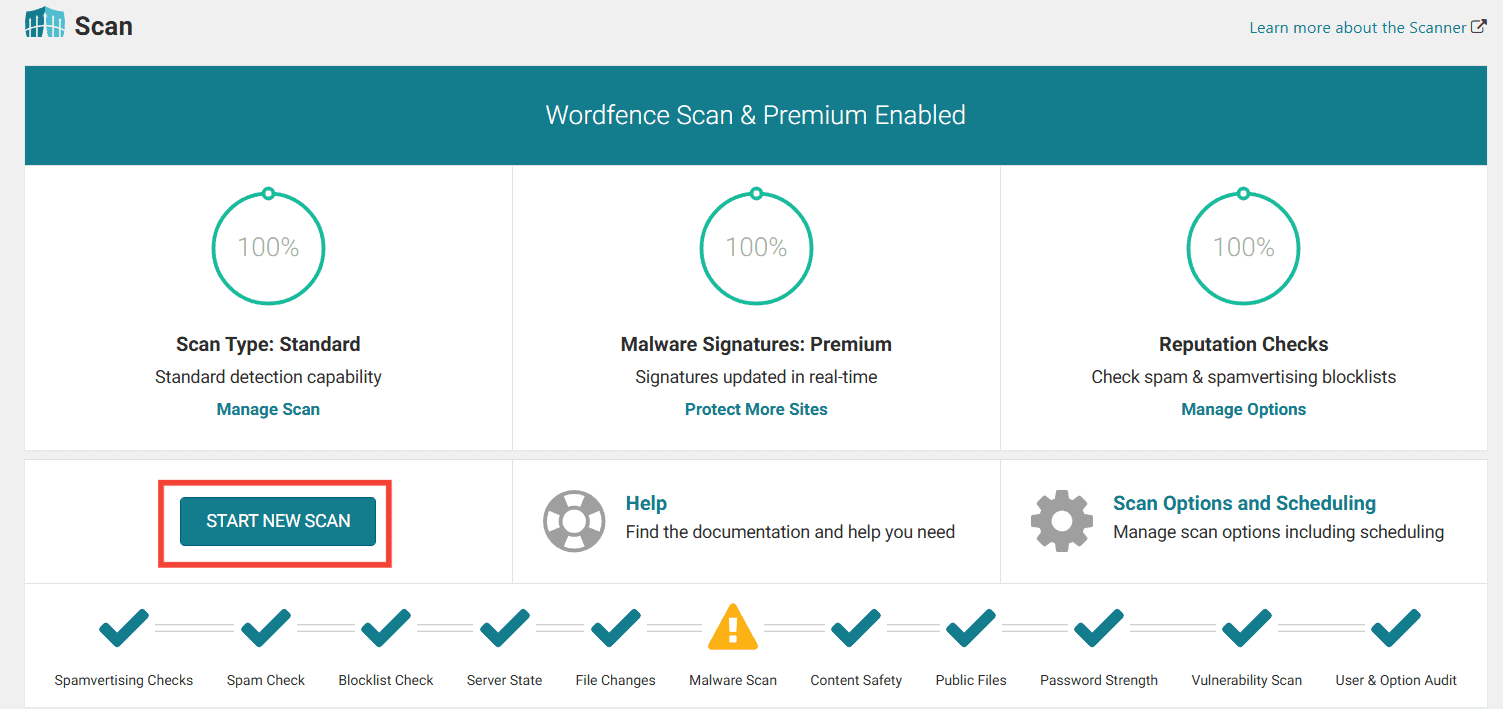
Wordfence will scan the core files, themes, plugins, and uploads for known malware signatures, malicious URLs, backdoors, spam, and suspicious code. It will also compare your core files against the originals in the WordPress repository to detect any changes.
2. Review the Scan Results Carefully
When the scan finishes, Wordfence will present a list of issues found.
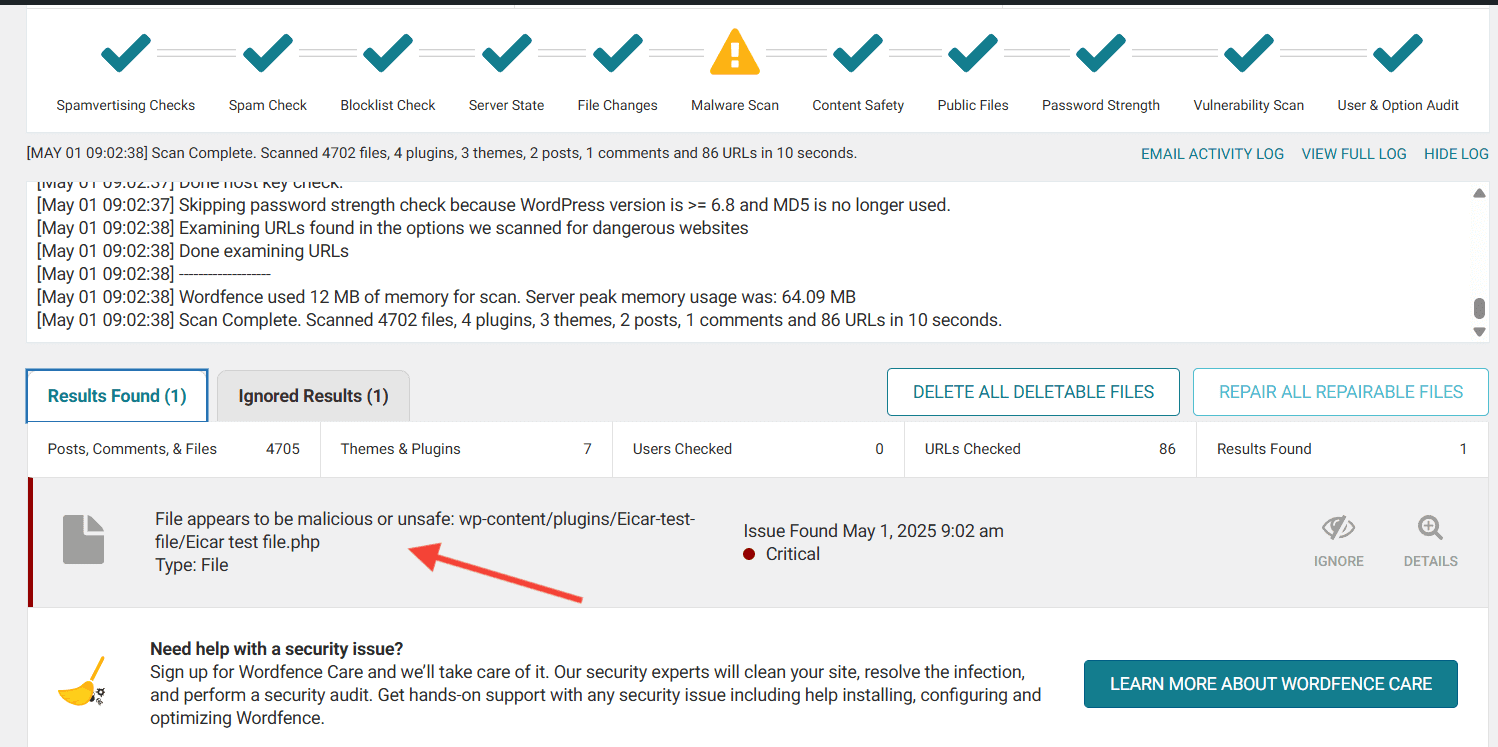
Typical findings include:
- Malware signatures found in files: Wordfence may list files that contain known malicious code patterns (for example, a known backdoor signature in a PHP file).
- Modified core or plugin files: If a core WordPress file or a plugin/theme file was changed, it will flag it. You can view the differences (the code that was added or changed) directly in the scan interface.
- Unknown files in WordPress directories: Malicious hackers often add files that don’t belong (like a random PHP file in /wp-includes/). Wordfence will call these out as suspicious.
- Malicious URLs or content: Wordfence might flag code that includes links to known bad sites or spam content (useful for detecting things like pharma hack pages or malicious scripts).
- Outdated plugins: Wordfence will also identify plugins or themes that haven’t been updated and are known to contain security vulnerabilities.
3. Clean the Infected Files and Remove the Malware
Unlike most WordPress security plugins, Wordfence provides repair and delete options for most issues in all of its versions, including the free option.
For core files or plugin/theme files that have been modified, first review the file before clicking the “Repair” option. The repair feature will automatically replace the file with a clean original copy from the official WordPress repository.
For malicious files, you will first want to review the file and then use the “Delete” option. Keep in mind that sometimes legitimate files from custom plugins or your web hosting provider may reside on the server, which is why it’s crucial to review files thoroughly before repairing or deleting them.
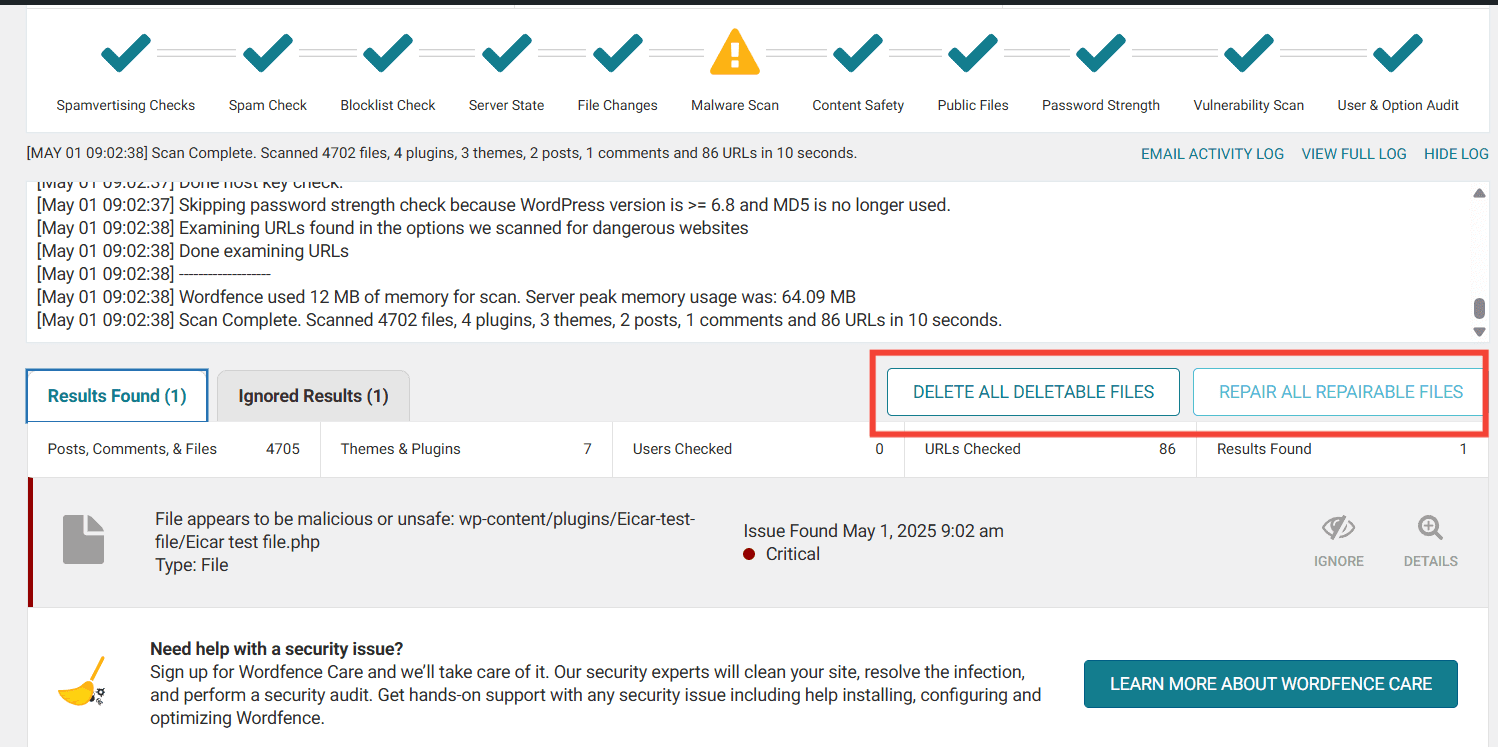
For malware code embedded in files that you can’t automatically repair (such as custom theme files or third-party plugins not in the WordPress.org repository), you have a few options:
- Wordfence will show the code difference, allowing you to manually remove the malicious code via FTP or the WP plugin/theme editor.
- If you’re not comfortable editing code, another approach is to replace the entire infected plugin/theme with a fresh copy from a clean backup or official source.
If you’d like assistance in malware removal, sign up for Wordfence Care to get help from WordPress experts during regular business hours, or Wordfence Response for a 1-hour response time, 24 hours a day, 365 days of the year.
Includes:
- Hands-on support from a dedicated security specialist
- Professional malware cleanup and site investigations
- WordPress security configuration
- Annual security audit with Q&A session
4. Secure Your Admin Users and Passwords
After cleaning the files, you need to lock down any entry points malicious actors may have used. Reset all your WordPress admin passwords and choose new passwords that are strong and unique.
Enabling two-factor authentication, or 2FA, is one of the most important steps you can take to prevent account compromise. Wordfence includes a free 2FA feature you can define to be required or optional based on account role, as well as reCAPTCHA to stop bots. It is recommended to make 2FA required for administrator accounts.
With 2FA, even if an attacker somehow cracks or steals a password, they can’t log in without the one-time code. This thwarts all brute-force and credential-stuffing attacks.
5. Verify Your Site and Lift Maintenance Mode
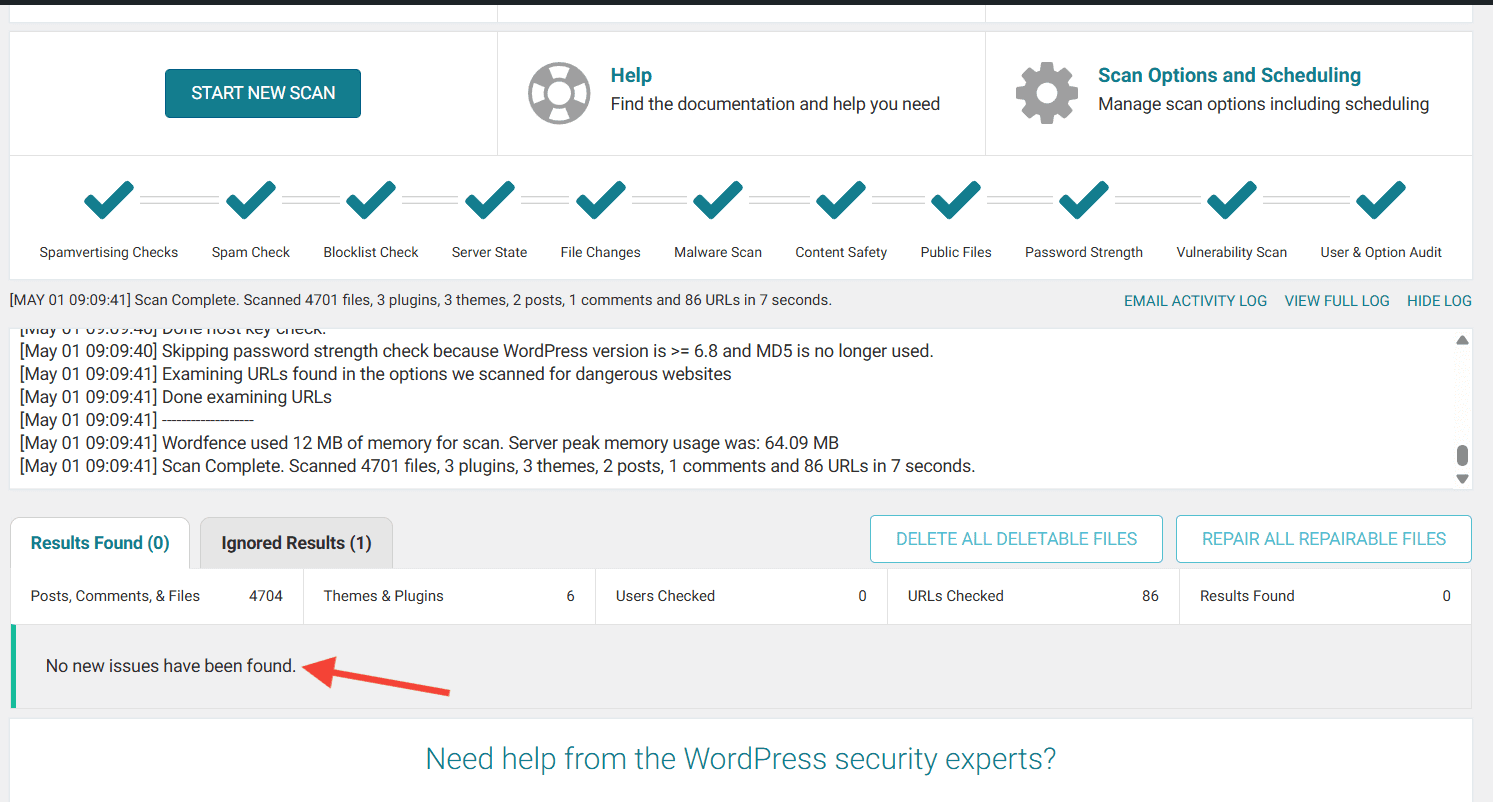
Run another Wordfence scan for good measure. If it comes up clean, you successfully removed the malware.
If you took your site offline, remove the maintenance mode banner so visitors and search engines can access your site again.
It’s also wise to go to Google Search Console and request a review to determine whether Google flagged your site with a security warning. Google will re-crawl the site; if they find it clean, they’ll remove the “hacked site” warning.
Wordfence’s team of experts who assist with the Care and Response plans can also help you get your website removed from blocklists.
Why Your WordPress Site Got Hacked
Cleaning up the malware is only half the battle. It’s important to understand how the attackers got in so you can fix the underlying issue and avoid a repeat incident.
Here are some common reasons WordPress sites get hacked:
Your Existing Security Plugin Couldn’t Detect Malware or Suspicious Activity
A security plugin is only as good as the database that powers it. Without quality malware signatures, your plugin won’t be able to detect malware, luring you into a false sense of security that makes you think your website is doing okay when in reality, it isn’t.
Wordfence is powered by the most comprehensive database of malware signatures in WordPress, ensuring every scan always checks against the latest vulnerability threats in the WordPress ecosystem. Premium, Care, and Response plan users get these updates immediately, while Wordfence Free users get them after a 30-day delay.
Wordfence also offers an Audit Log (available with the Premium, Care, and Response plans), which lets you check for any suspicious activity and trace the root cause of a security issue.
Outdated Plugins, Themes, or WordPress Core
Running old versions of software is the most frequent cause of site hacks. Vulnerabilities often become public once updates are released. If you haven’t applied those updates, malicious hackers will use automated tools to find and exploit those known holes.
Nulled Themes and Plugins
Using pirated copies of premium themes or plugins is a dangerous shortcut. Not only is it unethical, but attackers often tamper with them to include malware. You might unknowingly install a backdoor or malicious code directly onto your site just by using one.
Moreover, nulled plugins can’t receive official updates, leaving known vulnerabilities unpatched. If your site has been hacked and you have any pirated software on it, consider that suspect number one.
Weak Passwords
Your WordPress admin password (and your hosting account/FTP passwords) are critical lines of defense. Malicious hackers use brute-force attacks or leaked password databases to gain access. If your password is weak or reused from another service, it’s only a matter of time before it’s compromised.
Insecure Hosting Environment
Cheap web hosting services might not invest in strong firewalls or malware scanning at the server level. In addition, not having an SSL certificate or proper server configuration can expose you to certain attacks.
It’s also important to ensure your hosting provider doesn’t use a shared file system, as this could expose your site to vulnerabilities from other compromised sites on the same server. Always choose a reputable hosting provider that keeps its systems secure and regularly updated.
How To Prevent Future WordPress Hacks
Recovering from a hack is a lesson no one wants to learn twice. So prevention is absolutely key going forward.
With that in mind, here are the most important steps to take to prevent future hacks:
Use a Reliable, Proactive WordPress Security Plugin
Just like insurance, it’s better to have a security plugin and not need it than to be caught without one when it matters most. After all, whether your website is attacked isn’t a matter of if, but when.
One way to identify a high-quality security plugin is by looking at how it safeguards your site before an incident ever happens — not just how it responds afterward.
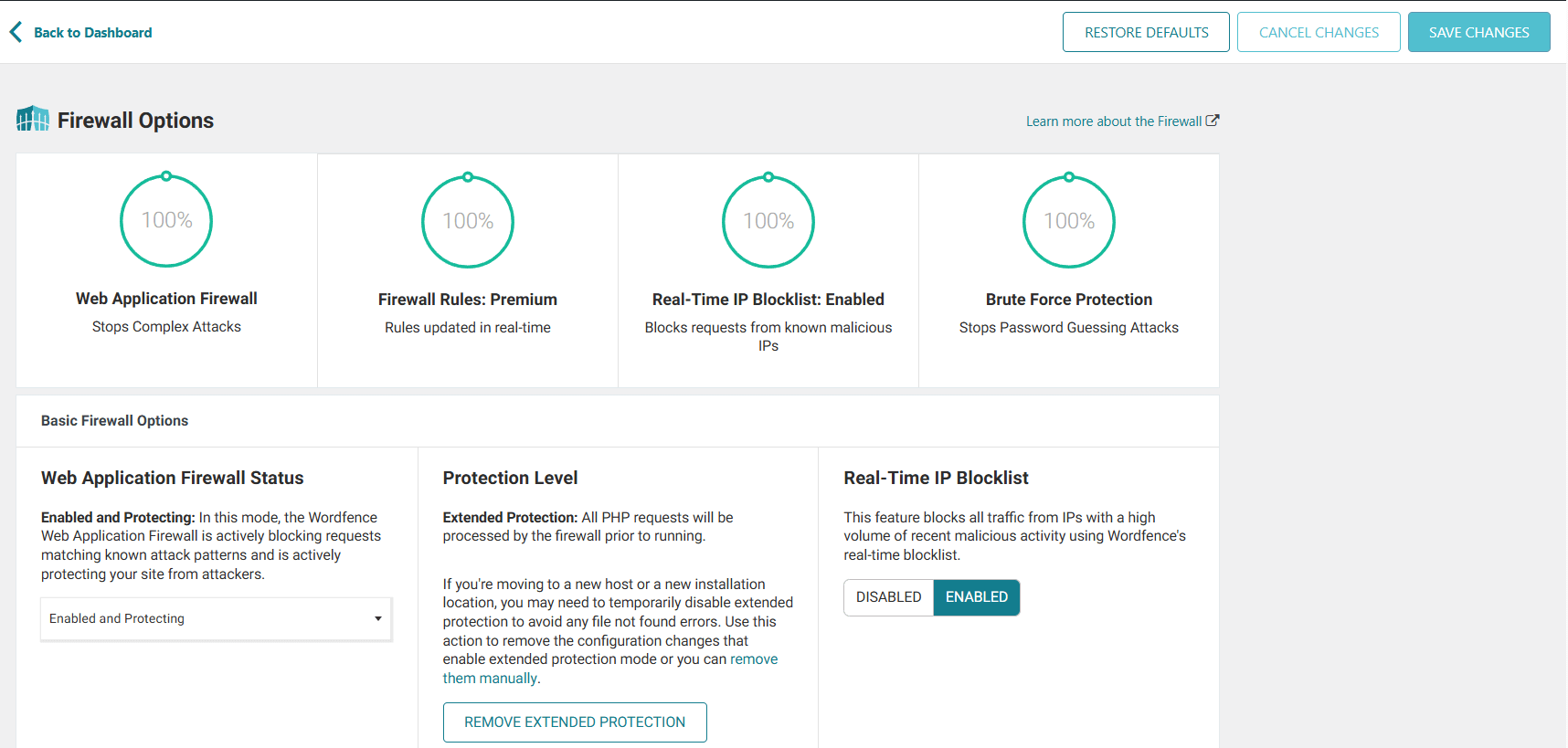
Wordfence takes a proactive approach to securing your website. It continuously updates its massive database of WordPress vulnerabilities and malware signatures, ensuring that even the latest threats are detected and blocked.
In fact, Wordfence is the only security solution with access to this unique data, using it to create protective firewall rules that stop exploits before they can do damage.
Through its active Bug Bounty Program, Wordfence incentivizes ethical hackers to report vulnerabilities. These findings are then used to develop new firewall protections and malware signatures, often including zero-day threats that other plugins miss entirely.
Wordfence offers comprehensive security features that help site owners stay ahead of potential problems. These include:
- The world’s best firewall and malware scanner for WordPress, frequently updated with the latest unique threat data gathered from over 5 million Wordfence installations.
- WordPress vulnerability scanner that regularly checks for outdated plugins and themes (while clearly explaining which ones need updating and why).
- Robust login security tools (2FA and password strength checker) to stop brute-force attacks before they start.
- Alerts sent via email, SMS, and Slack (from Wordfence Central).
- Management for multiple sites from one central dashboard with Wordfence Central.
- Real-time zero-day protection (available in Premium, Care, and Response plans).
- Advanced IP and country blocking (available in Premium, Care, and Response plans).
- Audit Log to keep an eye on site activity (available in Premium, Care, and Response plans).
Keep WordPress Core, Plugins, and Themes Updated
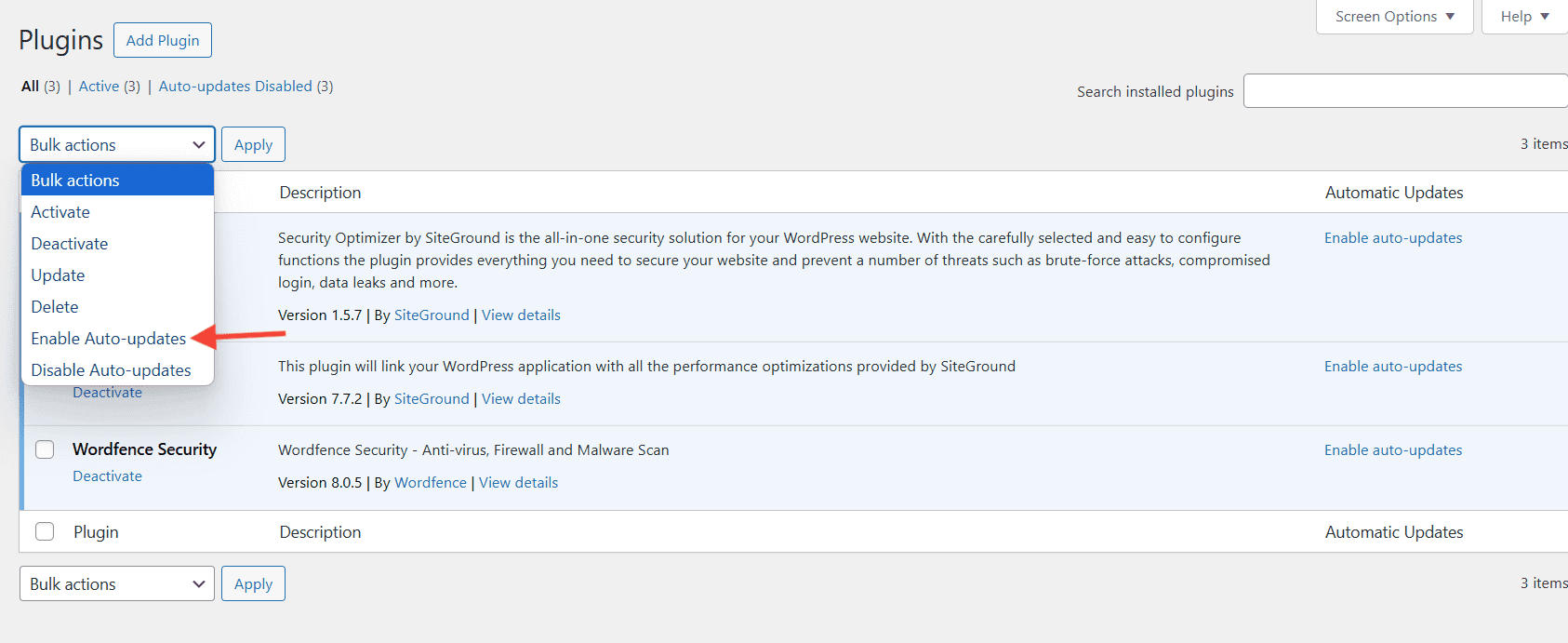
Updates to WordPress core, themes, and plugins often include security patches. So, make it a habit to log in and update weekly, if not more frequently. You can also enable auto-updates for plugins and themes when possible. This ensures known vulnerabilities are fixed before attackers can exploit them.
Keep in mind that auto-updates are “unattended updates” and can sometimes introduce bugs or site issues without your knowledge, especially if multiple updates run at once or involve major code changes. For critical sites, consider enabling auto-updates selectively and always keep a backup strategy in place.
In addition, remove any plugins or themes you’re not using — fewer code on your site means fewer potential vulnerabilities to worry about.
Remember, the vast majority of attacks target outdated software. That’s why Wordfence keeps a tab on your site’s plugins to ensure they’re always up to date.
Enable Alerts and Monitor Your Site
Configure your security plugin to send you email alerts for important events. Wordfence can alert you to things like someone being blocked from logging in for using a password found in a breach, or a large increase in attack attempts. Don’t ignore these alerts when they come — they are often early warning signs.
Also, monitor your Google Search Console and analytics. Sudden changes in traffic can indicate trouble. Attackers often start with small tests or minor breaches before a full-blown compromise. If you catch those, you can set up defenses in time.
Use the Principle of Least Privilege
Only give site access to people who need it, and only the level of access they require. For example, don’t make every user an Administrator if they only need to edit posts; use the Editor role instead.
If you have old user accounts that are no longer in use, remove them. This way, even if an account’s credentials leak, bad actors won’t have access to your WordPress dashboard.
Similarly, for your hosting account, use secure SSH/SFTP and keep those credentials safe. Overall, the fewer entry points and high-privilege accounts you have, the better.
Keep Your Website Malware-Free With Wordfence
Wordfence provides a Web Application Firewall that identifies and blocks malicious traffic. You also get access to real-time firewall rules and malware signatures, which are updated with new rules via the Wordfence Threat Defense Feed.
The feed is constantly updated with the latest threat intelligence gathered from Wordfence’s huge user base. The free version receives firewall rule updates after a 30-day delay, whereas Wordfence Premium/Care/Response gets updates in real-time.
Wordfence Premium/Care/Response users also have access to a real-time IP Blocklist, which automatically blocks traffic from known malicious IPs attacking other Wordfence-protected sites.
Protect Your WordPress Site Today
Wordfence’s comprehensive security features make for a multi-layered security approach that puts your website’s security at the forefront. Start securing your WordPress site with Wordfence today.